Review System & Module
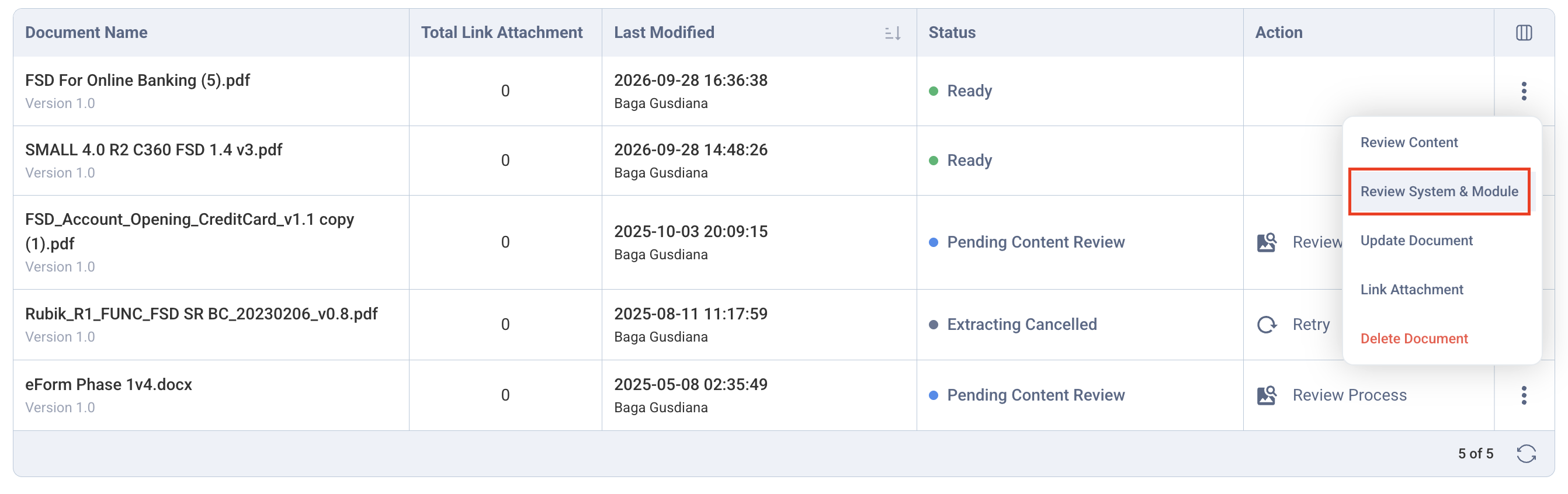
The System Module Review page can be opened by clicking the ⋮ icon at the end of a row then select Review System & Module.
On this page you can review the systems and modules found in the document, shown as a diagram next to the original document.
Page Overview
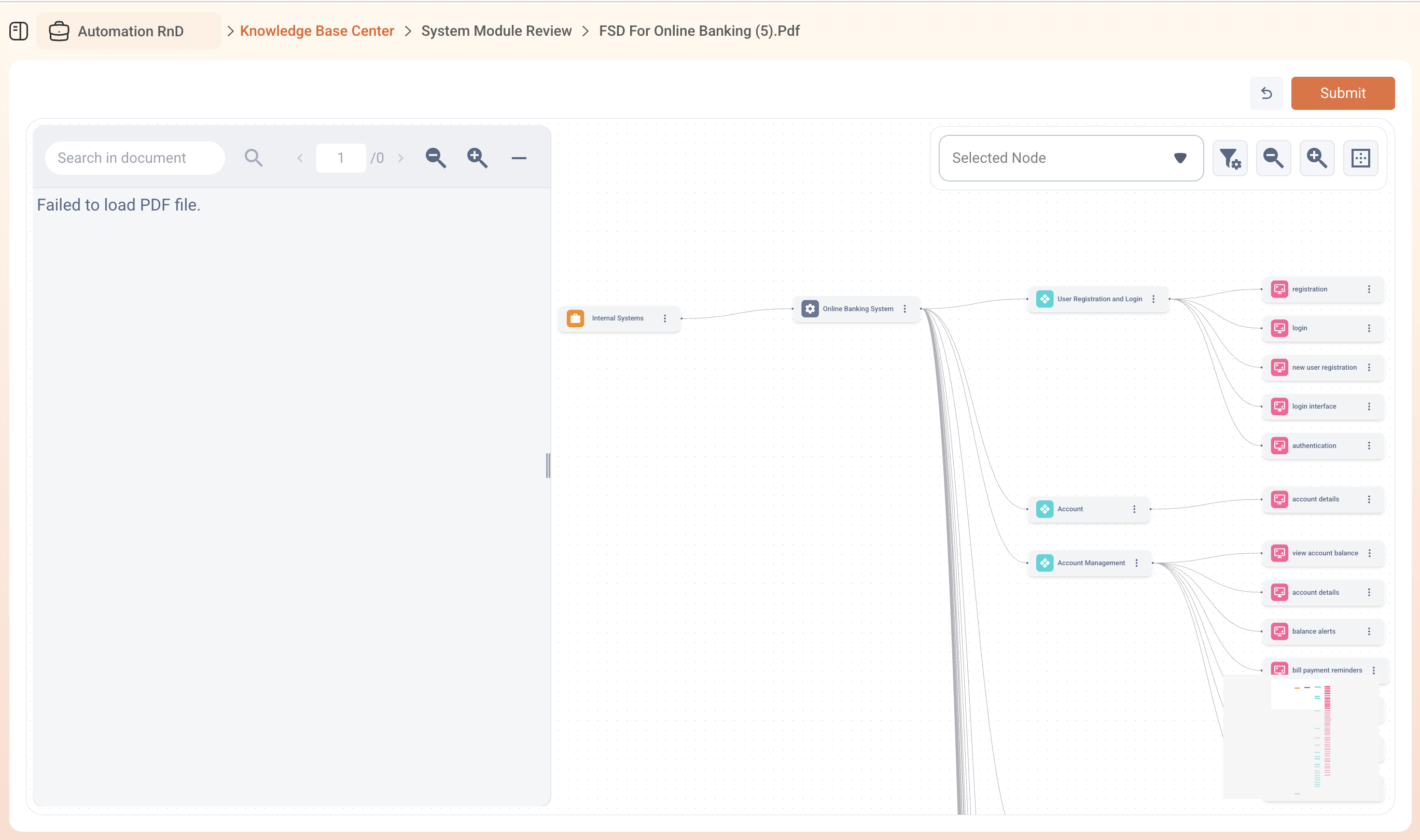
The page has two areas:
- Document panel (left) — shows the document, with Search in document, page navigation, zoom in / zoom out controls, and minimize button.
- Diagram (right) — shows the systems and modules as connected nodes.
Click Submit at the top-right of the page to submit your review.
Diagram
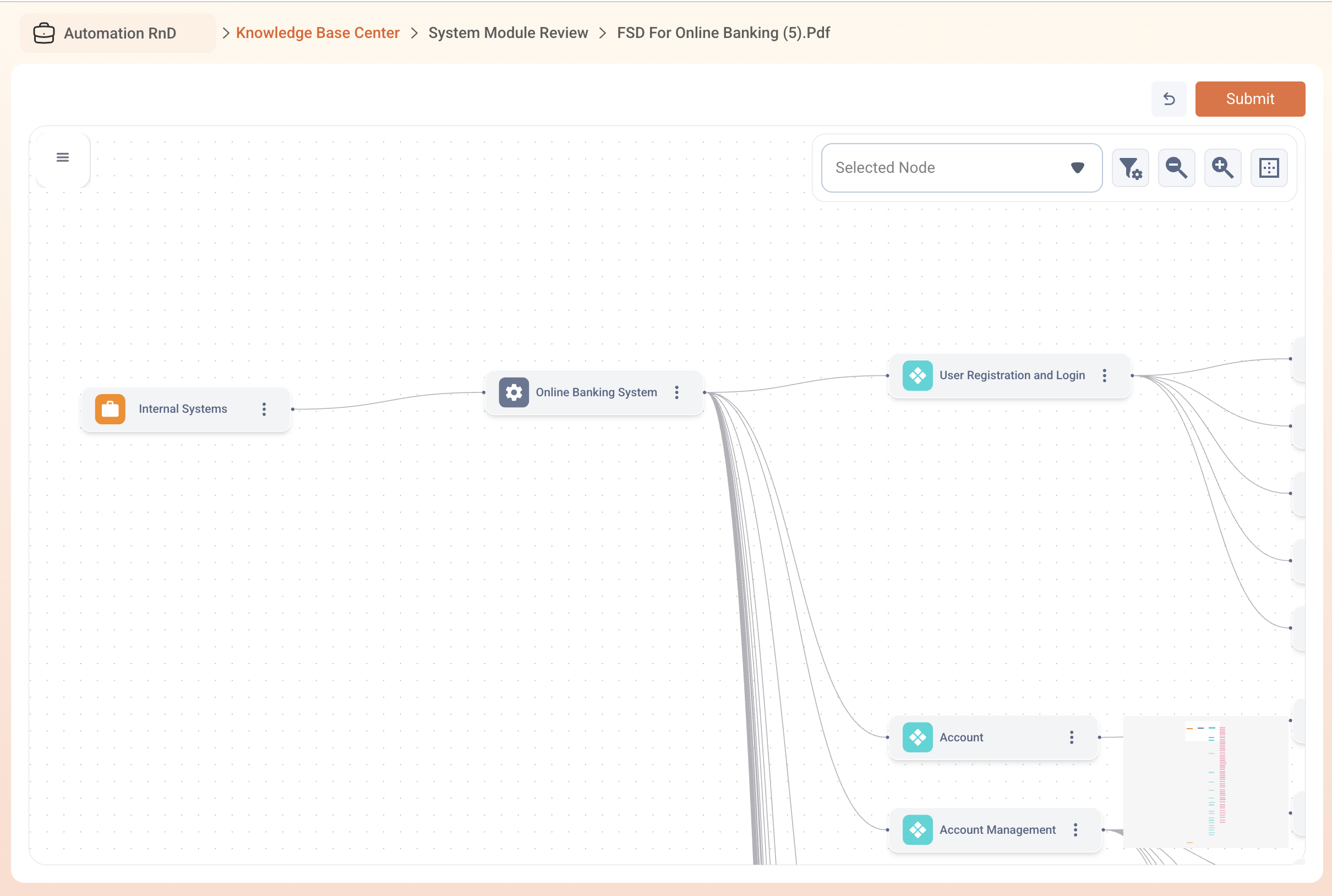
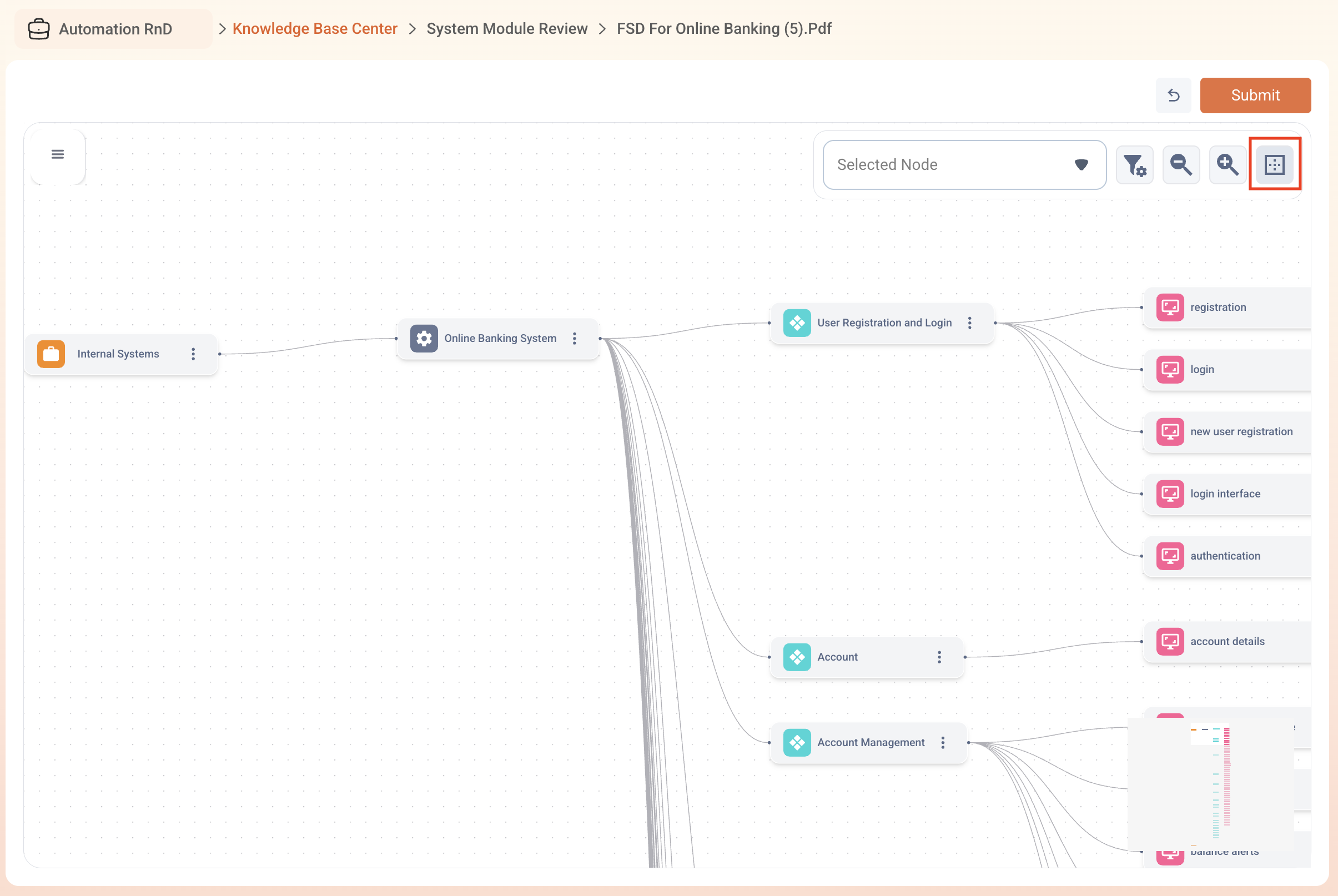
Nodes are connected by lines and arranged from left to right, from broader items to more specific ones.
Diagram Controls
The controls at the top-right of the diagram let you:
-
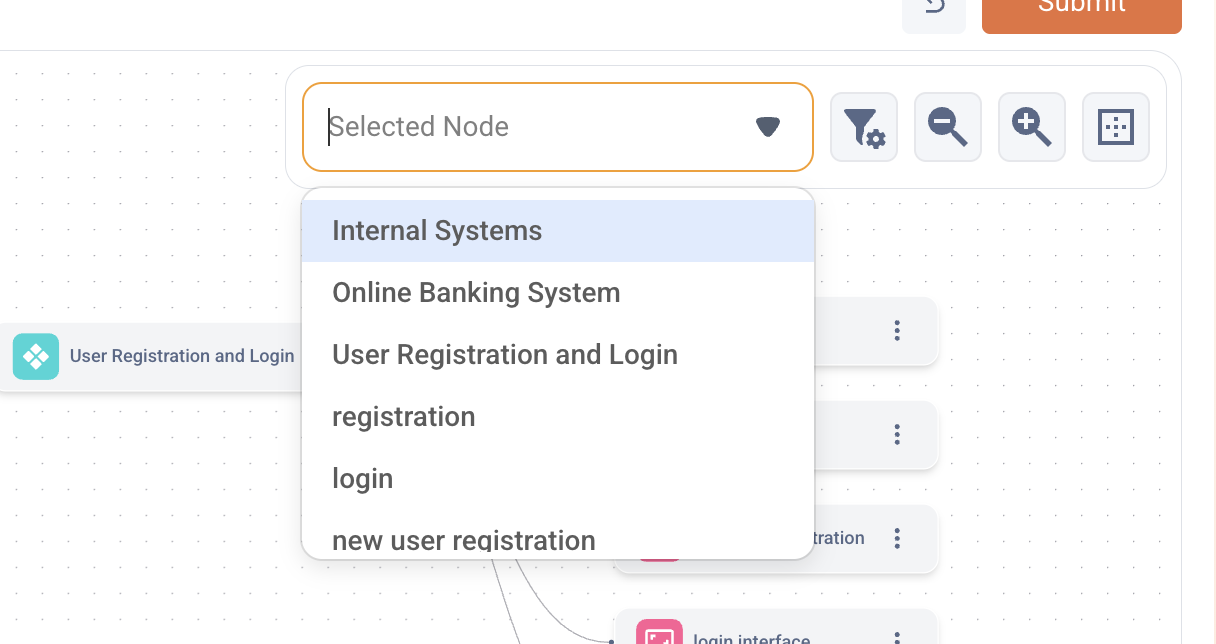
Selected Node — choose a node from the list of all nodes in the diagram. You can also type to search.
-
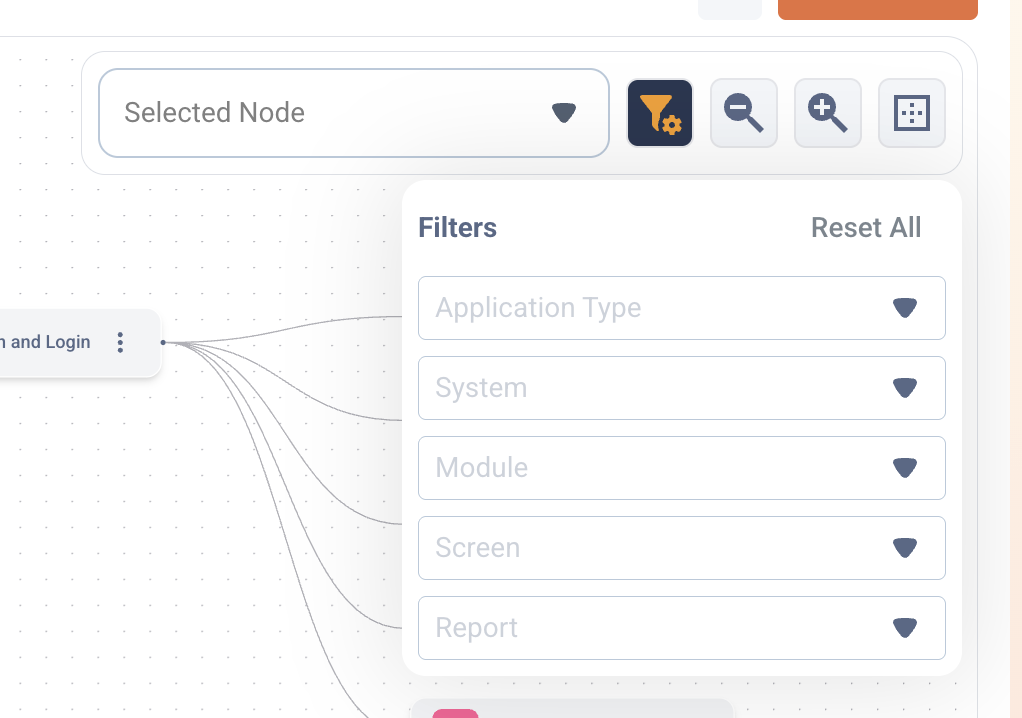
Filter — open the Filters panel and filter the diagram by Application Type, System, Module, Screen, and Report. Click Reset All to clear the filters.
-
Zoom out / Zoom in — adjust the zoom level of the diagram.
-
The square icon — reset the diagram so it fits the screen.
Node Actions
Click the ⋮ icon on a node to open its actions menu. The available options depend on the node's type.
Application Type Node
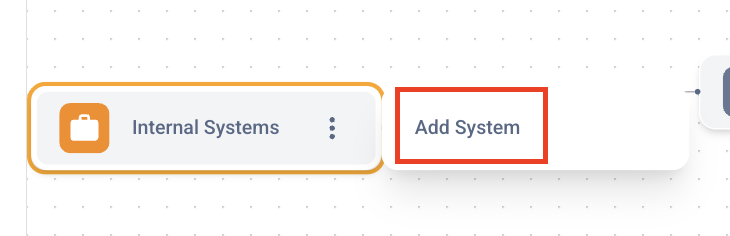
The Application Type node only shows Add System in its menu.
System Node
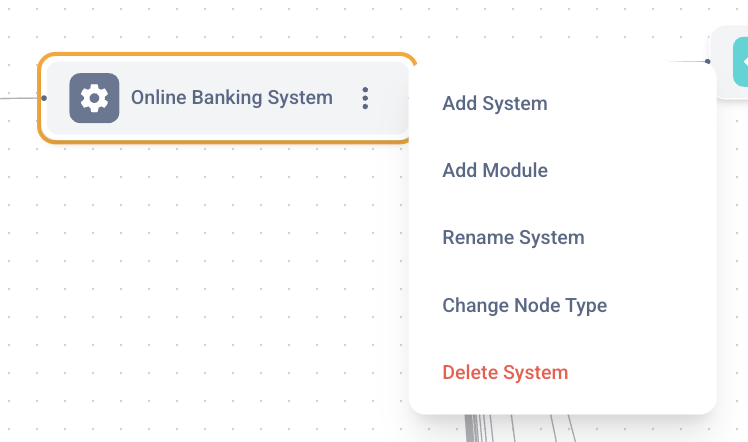
| Option | Description |
|---|---|
| Add System | Add a new system node |
| Add Module | Add a new module node under this system |
| Rename System | Rename this system |
| Change Node Type | Change this node's type |
| Delete System | Delete this system |
Module Node
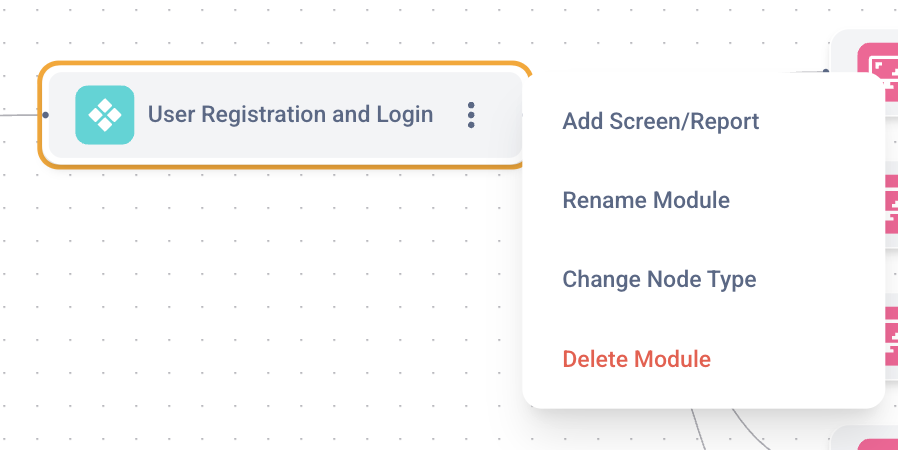
| Option | Description |
|---|---|
| Add Screen/Report | Add a new screen or report node under this module |
| Rename Module | Rename this module |
| Change Node Type | Change this node's type |
| Delete Module | Delete this module |
Screen/Report Node
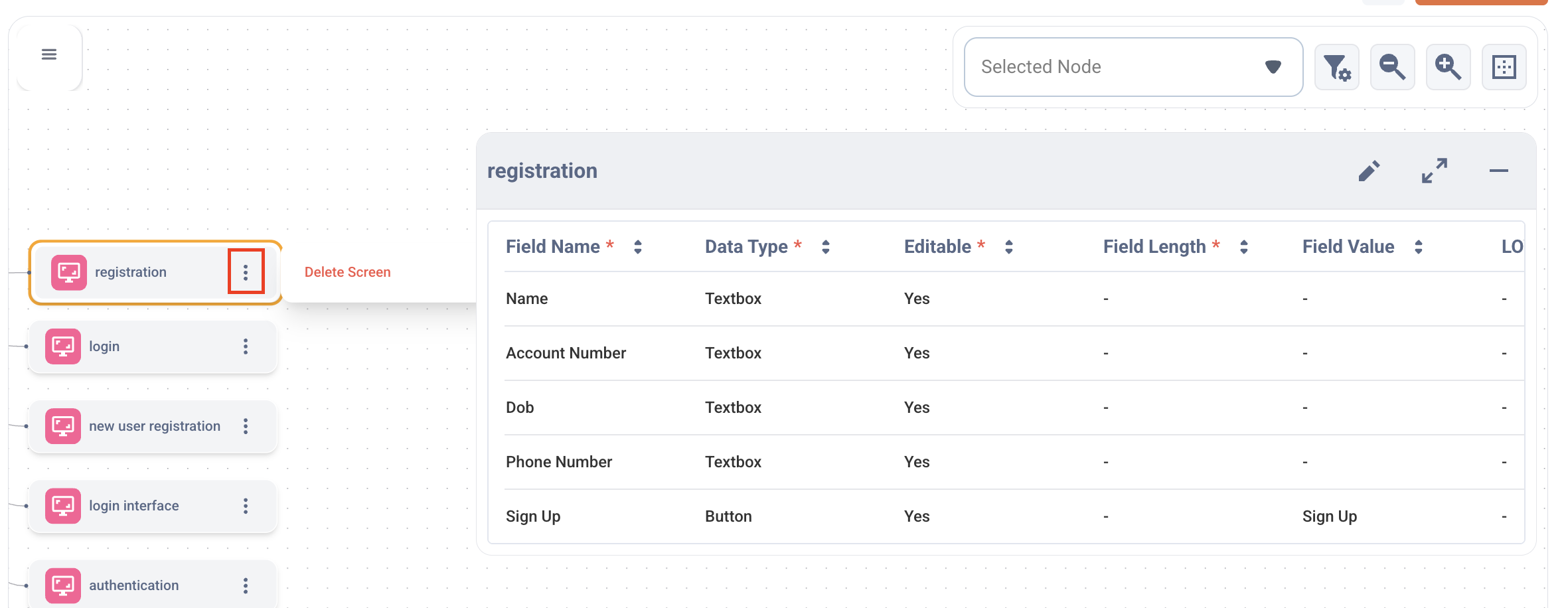
| Option | Description |
|---|---|
| Delete Screen | Delete this screen/report |
Screen/Report Detail Panel
Click a screen or report node to open its detail panel, showing its fields in a table with columns Field Name, Data Type, Editable, Field Length, Field Value, LOV Reference, Mandatory, Validation, and Action.
Three icons are available at the top-right of the panel:
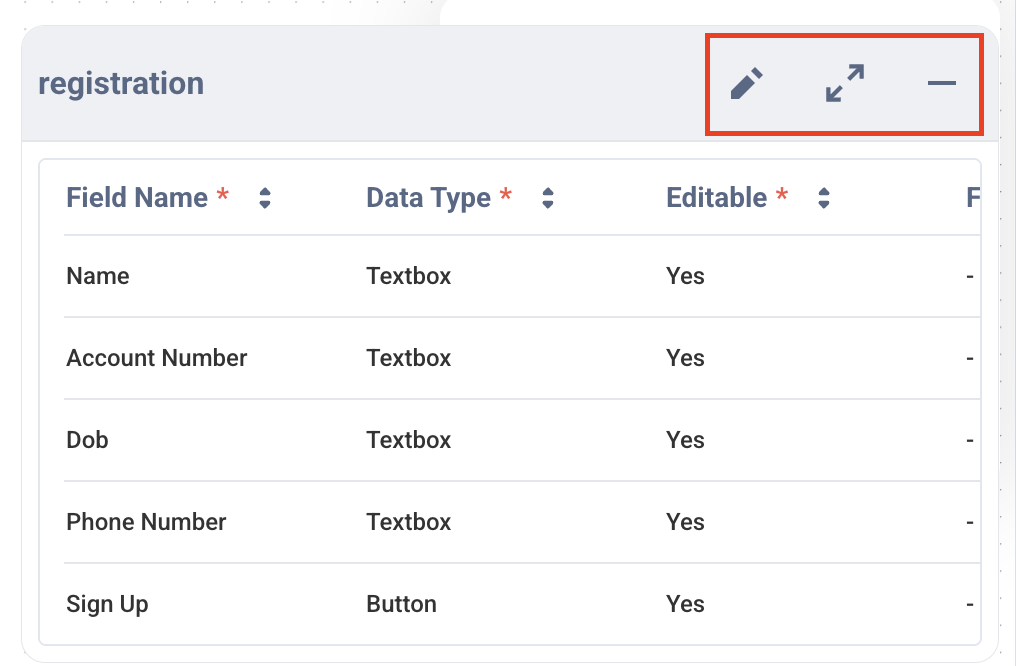
| Icon | Description |
|---|---|
 | Edit the fields |
 | Collapse/expand fullscreen view |
 | Collapse the panel |
Editing Fields
Clicking the pencil icon turns each field into an editable input. When editing, the toolbar at the top-right changes to:
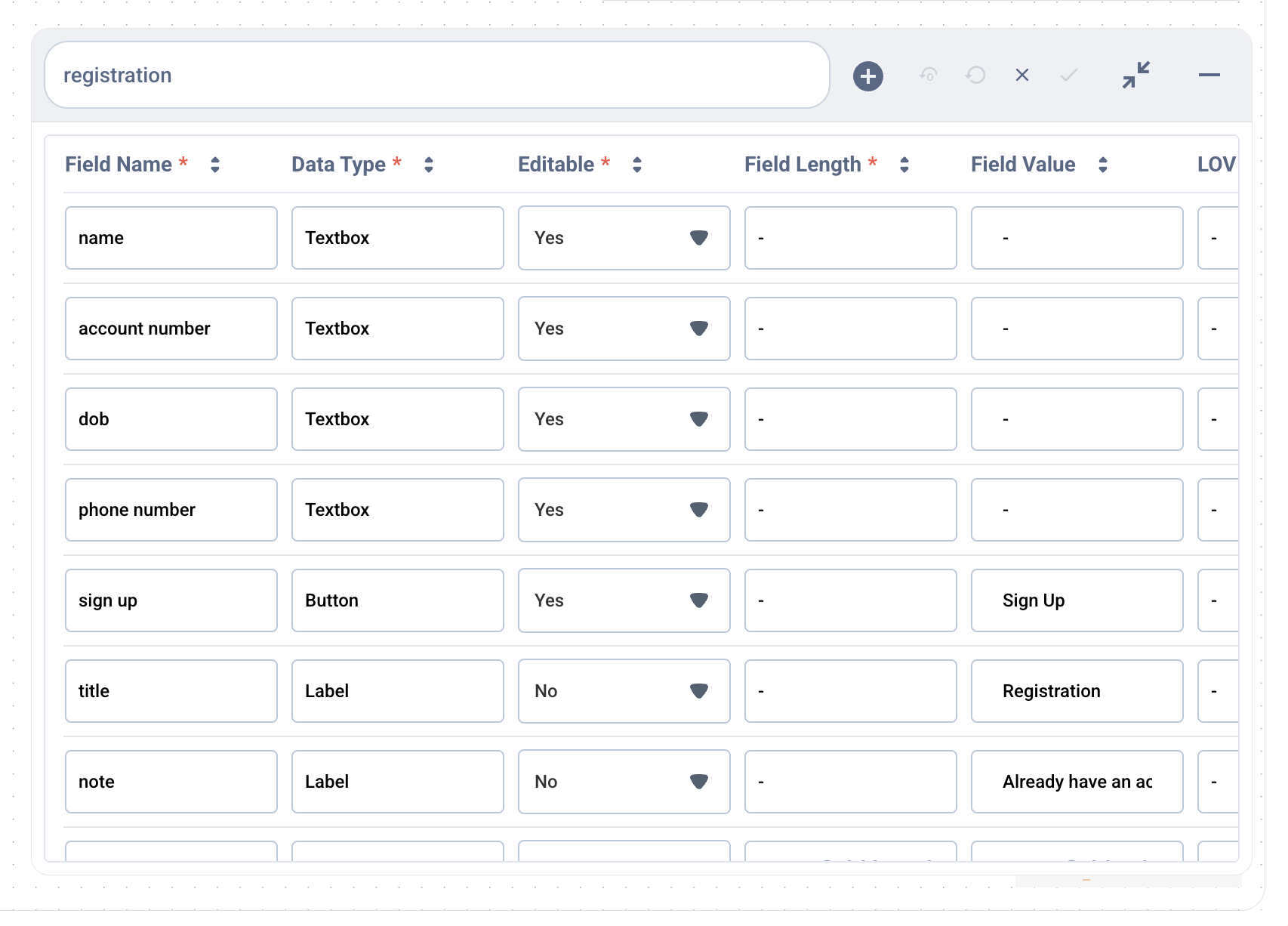
| Icon | Description |
|---|---|
 | Add a new field row |
 | Reset your changes |
 | Undo your last change |
 | Cancel editing |
 | Save your changes |
 | Collapse/expand fullscreen view |
| Collapse the panel |
